
Kate
Before we start, it’s important to note that Kate relies on the presence of syntax highlighting file for the usage of the LSP. Therefore, we’ll set up the syntax highlighting first.
Syntax Highlighting
Section titled “Syntax Highlighting”Kate has built-in support for highlighting Slint files since KDE Frameworks 6.27. The current Frameworks version can checked under the “Help” -> “About Kate” menu. Since this release is new as of time of writing, you can still find manual installation instructions below.
The highlighting syntax file needs to be copied into a location where Kate can find it. See the Kate documentation ↗ more information.
On Linux, this can be done by running this command
mkdir -p ~/.local/share/org.kde.syntax-highlighting/syntax/wget https://invent.kde.org/frameworks/syntax-highlighting/-/raw/master/data/syntax/slint.xml -O ~/.local/share/org.kde.syntax-highlighting/syntax/slint.xmlOn Windows, download slint.xml ↗ into %USERPROFILE%\AppData\Local\org.kde.syntax-highlighting\syntax
After setting up the syntax highlighting, you can now install the Slint Language server. Check the LSP Documentation for instructions.
Once it is installed, go to Settings > Configure Kate. In the Plugins section, enable the LSP-Client plugin. This will add a LSP Client section in the settings dialog. In that LSP Client section, go to the User Server Settings, and enter the following in the text area:
{ "servers": { "Slint": { "path": ["%{ENV:HOME}/.cargo/bin", "%{ENV:USERPROFILE}/.cargo/bin"], "command": ["slint-lsp"], "highlightingModeRegex": "Slint" } }}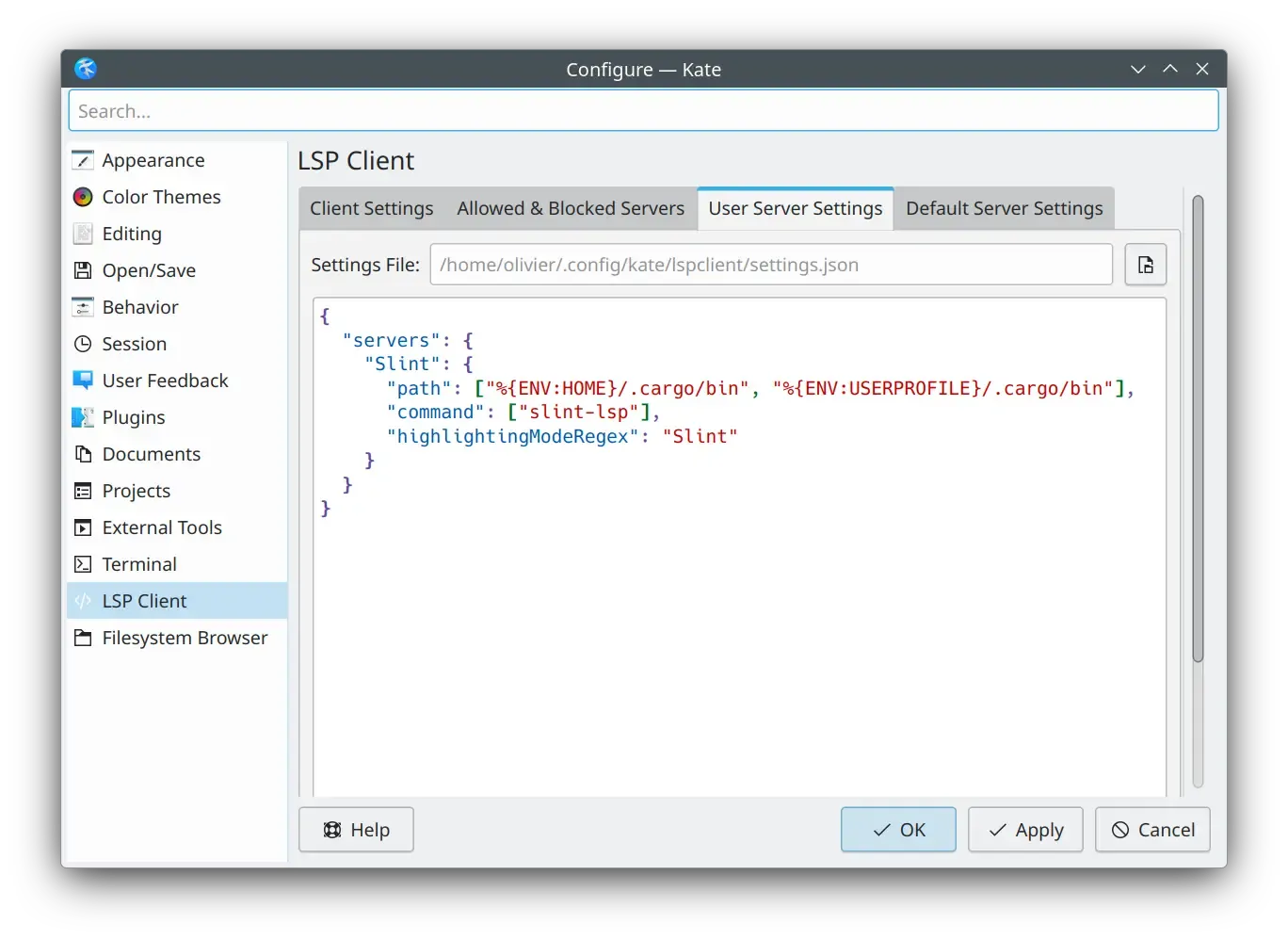
Live Preview
Section titled “Live Preview”Once the LSP is correctly set up, to preview a component, first, position your cursor on the name definition of the component you want to preview
(for instance, MainWindow in component MainWindow inherits Window {).
Then, activate the Show Preview code action.
You can do this by using the Alt+Enter shortcut to bring up the code action menu,
or find it in the menu bar at LSP Client > Code Action > Show Preview
© 2026 SixtyFPS GmbH